Organizing My Creativity — Project Folders

macOS Folder illustration by Kris Black
This is the start of a new series about how I organize my creative life. I’m naturally an organized person. I like to keep the house neat and clean, making sure things are in their proper places. I always bring in trash and items from the car that don’t belong there. I clean up after myself when I’m done making lunch, I unload the dishwasher that ran overnight first thing in the morning after waking up and before hitting the gym.
I find it easy to organize physical items in my everyday life. However, when it comes to my digital life, it’s so easy to let systems and processes get cluttered and fall into a state of chaos.
Methods to the Madness
I discovered a simple organization system for digital files, maybe even one you’ve heard of, PARA Method by Tiago Forte. There are four main categories of PARA which are below with the official explanations.
Projects (P): Short-term efforts with a clear deadline or outcome (e.g., "Launch New Website," "Plan Vacation").
Areas (A): Long-term responsibilities that require ongoing management (e.g., "Health," "Finances," "Home").
Resources (R): Topics or interests you're saving for future reference (e.g., recipes, photography tips, articles on Stoicism).
Archives (A): Completed projects or inactive items from Projects, Areas, or Resources that you want to keep but don't need frequent access to.
While I haven’t fully embraced PARA 100% into my workflow and organization of digital files, it has brought me some peace of mind and clarity with my file system.
Let’s get into how I organize projects for myself and client work.
Organizing Projects
I’ve been using a Mac for 34 years. That’s a long time to build up a vast collection of files and folders. I like to organize my creative life into two main categories.
Client Projects — Work I do for clients as an independent visual designer.
Studio Projects — Websites, comics, children’s books, and cartoon art I create for myself as an independent creator.
Each of these project areas has vastly different needs for organization.
Organizing Client Projects
My Client Projects folder is pretty-well organized. This first level down are all the clients I’ve worked with. Since I’m a Mac user, I tag the client folders I’m currently doing work for as active which changes the project folder to green. I then sort my Client Projects by tags which brings any active clients to the top of the list.
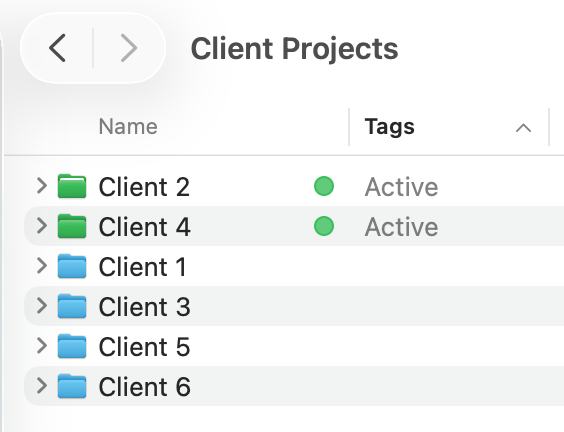
Example of my Client Projects folder on macOS and how I tag active clients and sort by tags to get those active clients to display at the top of the list.
What’s great about being a Mac user is any tags I create on my Mac are synced through iCloud Drive to my iPhone and iPad—even the tag color.
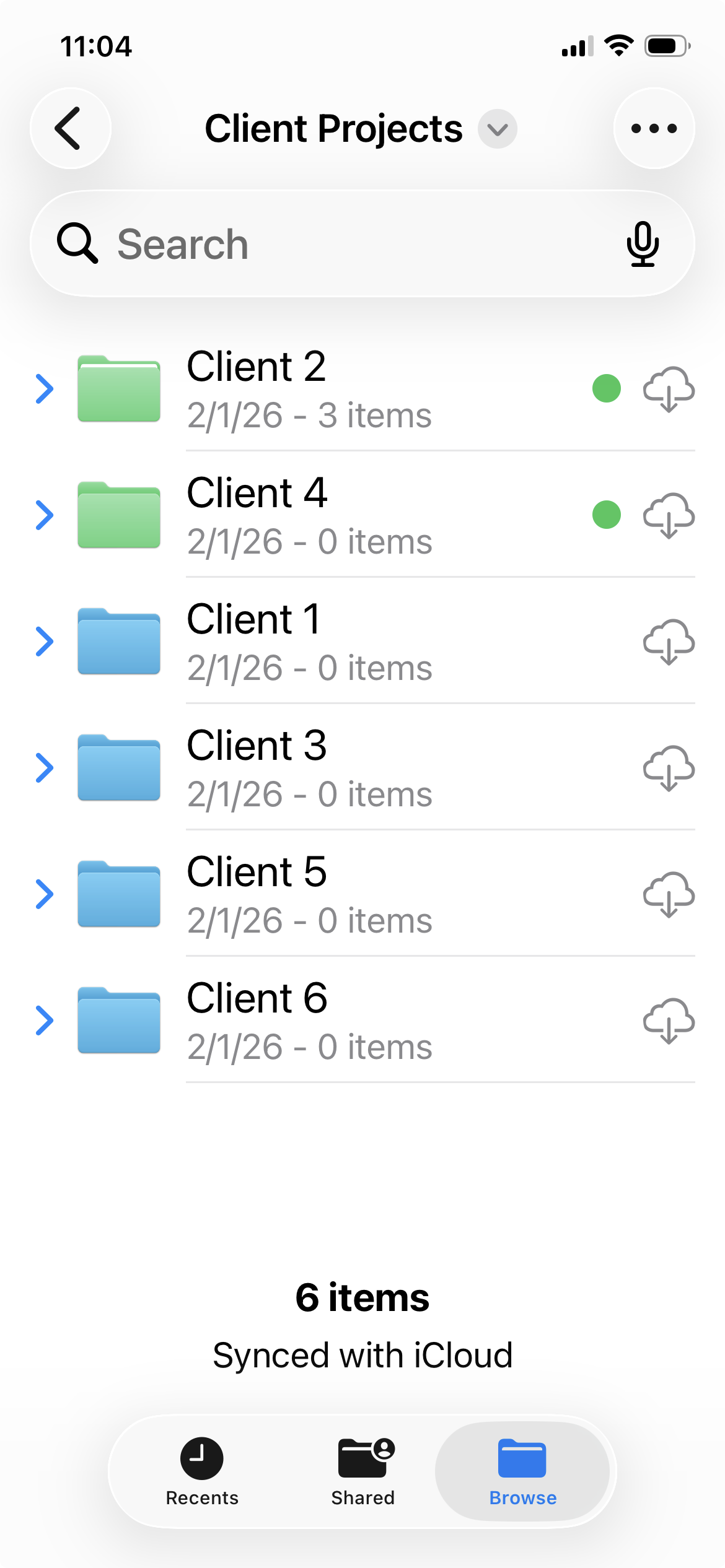
Example of my Client Projects folder on iOS and how I tag active clients and sort by tags to get those active clients to display at the top of the list.
Each client folder contains an archive folder followed by active project folders. As I complete projects I enjoy moving them into an archive folder to keep the view shorter and easier to focus on active projects.
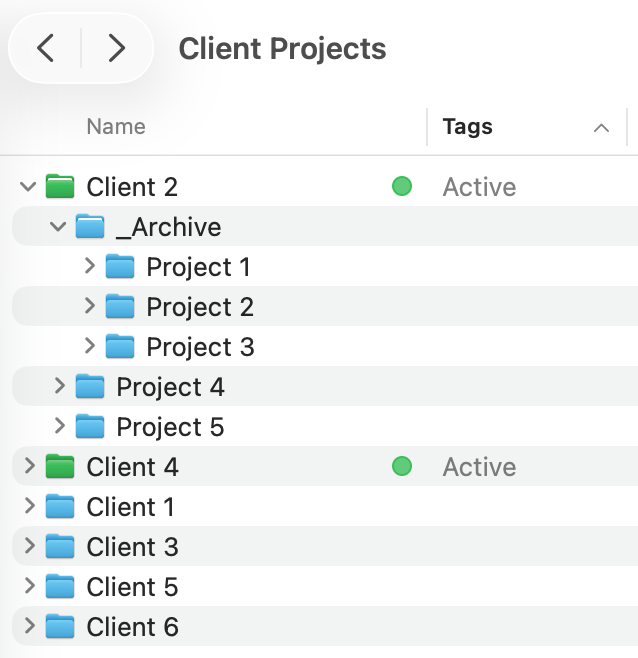
Example of project folders in an active client folder on macOS
To conserve space on my Mac, clients with all completed projects and no correspondence for a year are transferred to deep storage on my Synology NAS, an external hard drive in my home network.
Organizing My Studio Projects
Organizing my Studio Projects is similar with some differences. Since these projects are for me, I can be a little looser. I have created a lot of projects over the years—websites, comics, paintings, stickers, trading cards, and podcasts. I keep everything, as one does with digital files, so there’s a lot to organize.
Almost all of my projects fall under a specific interest I have. I tend to compartmentalize my interests into different brands that focus on a specific audience.
Apple Cartoonist - a webcomic about all things Apple (still in development)
Cartooning & Illustrations - all of my illustration and cartooning work
Driven Creatively Mad - my podcast I’ve used to interview other creators and share my journey of becoming an independent illustrator and cartoonist
Kidlit Creator - a new venture to provide visual design services for the kid lit industry
Kris.Black - my visual design and web development portfolio
writeDRAWcode_ - my blog and membership site for sharing detailed process work on my projects
Project Folder Structure
When it comes to organizing a specific project’s files, clear folder structures are key to being able to find files and assets quickly. I learned this decades ago at my first job when I worked on a team with multiple graphic designers.
I strive to organize project folders (and the rest of my Mac) in such a way that my wife or kids would be able to easily find a document if I needed them to.
I’ve modified my approach over the years to project file organization. I’m always looking for ways to improve my workflows, and I figured this might be a good time to evaluate my project folder structure.
I searched online for examples of how other designers structure their project folders and found a simple approach by designer, Dan Mall.
Core Folders
I highly suggest you read his post for explanations about this structure. It’s beautifully simple, and what I like most is how versatile it is for any project. There are only four core folders.
Assets - Anything that supports your project.
Delivery - Files sent to your client
Editable Files - This is your workhorse folder. It contains all your design files you use to create your work.
Review - Anything you share with your client or others about your work.
I won’t get into details about how Dan breaks down those folders as he does it better than I can. It’s such a wonderfully simple approach and I love it. I was able to quickly adopt it after years of a more complex structure I had created for myself.
How do you organize your project folders? I’m always interested in hearing how people organize their digital life.